
The inbox shows you an overview of all your conversations and allows for management of these conversations.
Instructions
-
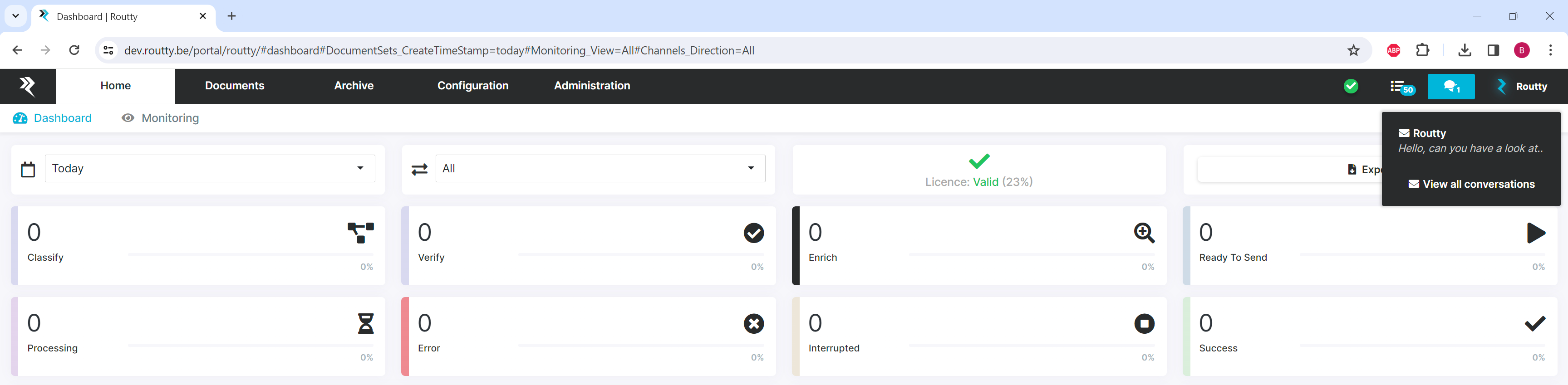
By clicking on the message icon in the upper right corner of a screen, you’ll see the last messages you received displayed below
-
If you received a new message, it will be visible as an unread message in your inbox and the message icon displays the number of unread messages
-
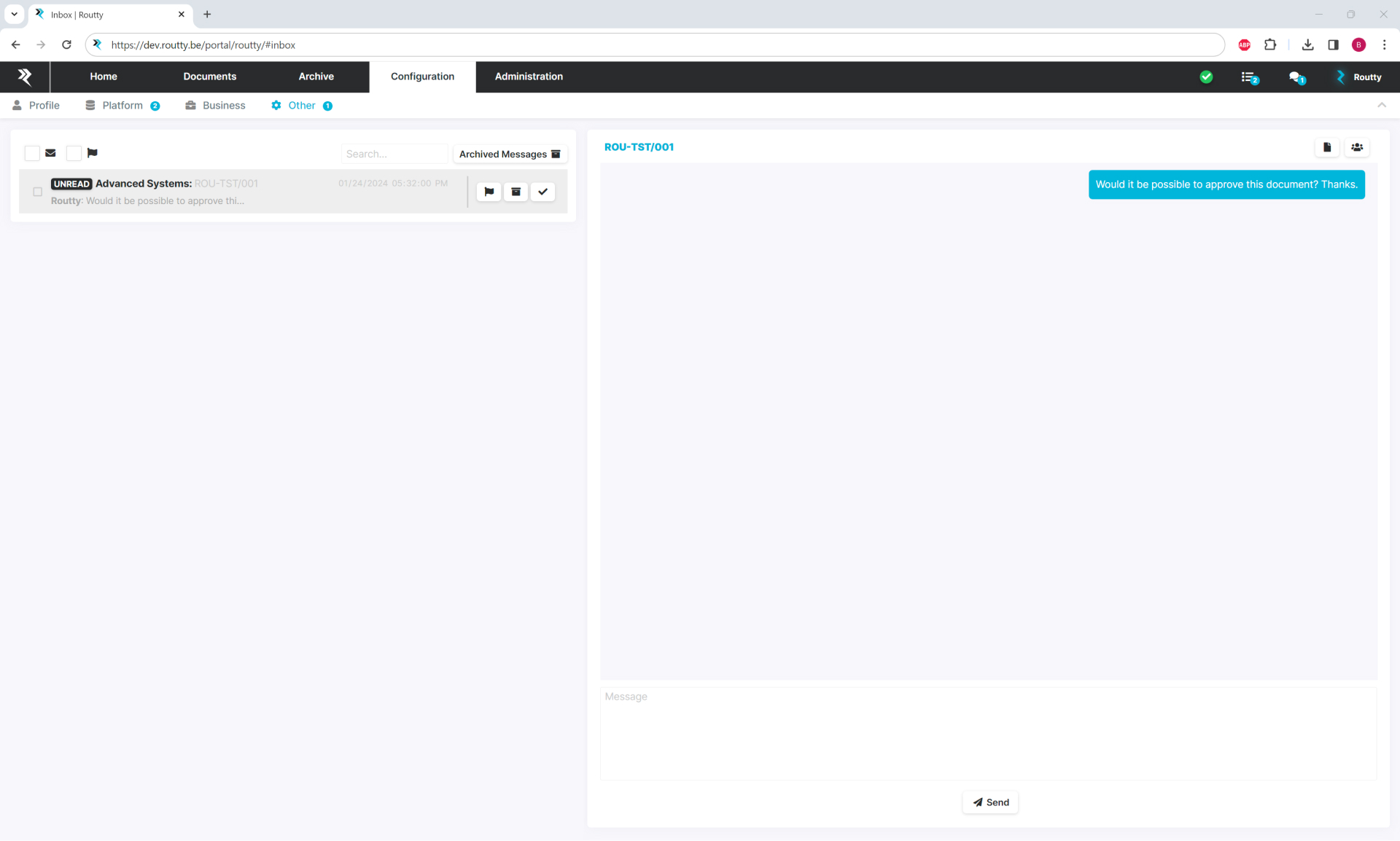
The inbox itself will show all read and unread conversations
-
It is possible to put conversations back to unread by clicking on the checkmark of a conversation
-
Read conversations have a green checkmark while unread conversations have a black one
-
-
Every conversation has a timestamp (this is the date when the last message in this conversation was received)
-
Click on the document number on the top left of the conversation to be redirected to the document in the current workflow step
-
To reply to a conversation enter the text in the input box and press the send button
-
It is possible to search on the conversation and the content of the last message by using the search function
-
To filter on unread conversations tick the checkbox of the message icon
-
If only flagged conversations need to be visible tick the checkbox near the flag icon.
It is possible to flag important conversations by clicking on the flag icon
-
To add other users to the conversation click on the members icon, the current members are visible when hovering over the icon

-
To view the document in PDF format click on the document icon next to the member icon, the PDF will be opened in a separate browser tab