
This page allows users to create, edit and delete automation rules. Automation rules allow users to change the (meta)data of documents, helps generate a more complex journal entry and allows alerts to be triggered when a document or journal entry doesn’t meet a specific set of criteria.
-
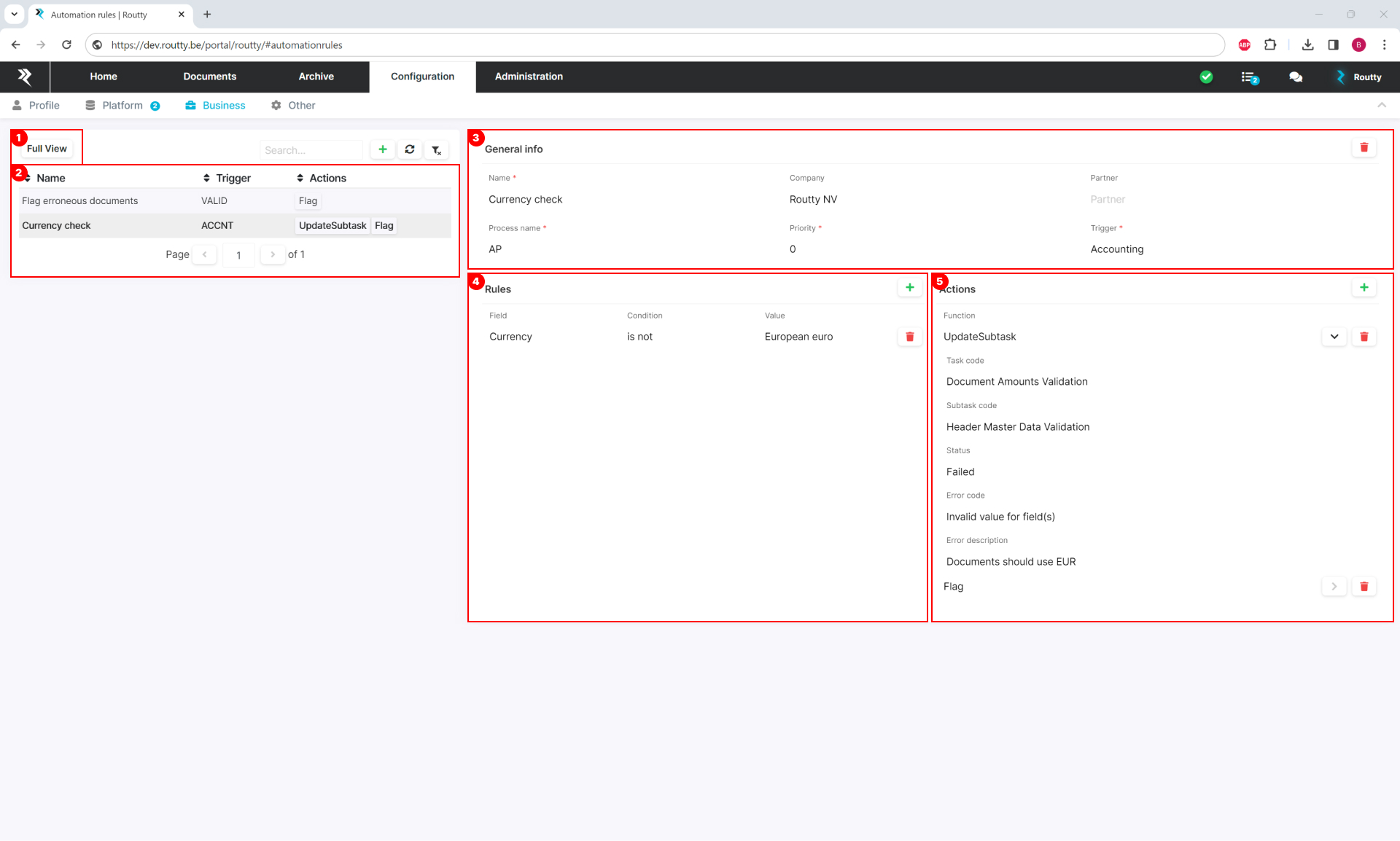
Press the FULL VIEW button to switch back to the full table view (button is only shown while in split view mode)
-
Table view where all automation rules are described
-
Part of the detail view of a rule, the General info section contains basic info regarding the selected rule
-
name Human readable used to identify a specific rule
Supports alphanumeric characters and spaces. -
PROCESS name Business process to which the rule applies
The list of available processes depends on the installation. -
PRIORITY Set the priority of a rule
The priority that is selected will determine the rule that will be followed first when different rules overlap, lower values have a higher priority. Rules of the same priority are ordered and run by partner party, and then by company party. Meaning that more specific rules will have a higher priority than generic rules. -
COMPANY name Set the company for which a rule applies
Leaving the field empty means that the rule will apply to all companies. -
PARTNER name Set the partner for which a rule applies
Leaving the field empty means that the rule will apply to all partners. -
TRIGGER Set the trigger of a rule
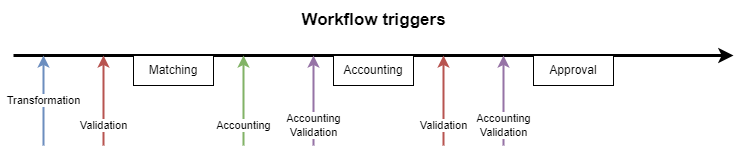
Rules will be run at specific points during the workflow. The following triggers are available to choose from :-
Inactive: These rules are never triggered (automatically).
-
Transformation: These rules are used to change the (meta)data of documents, before all else.
-
Validation: These rules allow you to alert when a document doesn’t meet a specific set of criteria. (These are evaluated independent from the other validation tasks, and vice versa ! The result of one therefore does not interfere with another.)
-
Matching preparation: These rules are used to change the (meta)data of (an) invoice (lines), before matching happens.
-
Matching: These rules help match (an) invoice (lines).
-
Accounting: These rules help generate a more complex journal entry.
-
Accounting validation: These rules alert you when a journal entry doesn’t meet a specific set of criteria.
-
-
-
Part of the detail view of a rule, the rules section allows a user to add specific conditions to a rule
-
Field Select the field on a document for which the condition applies
-
Condition Select the operator used to compare the selected field and actual value
The following operands are available to choose from :-
is
-
is not
-
greater than
-
greater than or equals
-
less than
-
less than or equals
-
starts with
-
contains
-
in
-
-
Value Set the actual value to check against
These checks are not cumulative, meaning that a rule that checks a journal line field will apply to each line of the journal entry separately. Multiple conditions can be set up this way, actions of a rule will only be executed once all conditions are met.
-
-
Part of the detail view of a rule, the Actions section allows a user to select the actions that need to be executed on a document
-
Function Select the action that needs to be executed. The following actions are available to choose from :
-
Set: Assigns a value to a document (meta)data field. The first parameter is the field to set, the second the value to assign.
-
SetIfEmpty: Assigns a value to a document (meta)data field, but if and only if the field is empty. The first parameter is the field to set, the second the value to assign.
-
AddAudit: Add an entry to the audit log. This action takes four parameters: the type/title (e.g. “Validation error”, the action verb (e.g. “Update”), the context (e.g. “Supplier party”), and the message itself (e.g. “The supplier site code is required but missing.”).
-
UpdateTask: Update a validation task with the given code. This action takes four parameters: the code of the validation task (e.g. “PIPO”), the status (0 = Pending, 1 = Complete, 2 = Failed, 3 = Resolved), the error code in case the task failed (e.g. “PIPOINV”), and an optional set of parameters (e.g. PO number).
-
UpdateSubtask: Update a validation subtask with the given code. This action takes five parameters: the code of the validation task (e.g. “PISP”), the code of the validation subtask (e.g. “PISPSTAT“), the status (0 = Pending, 1 = Complete, 2 = Failed, 3 = Resolved), the error code in case the task failed (e.g. “PISPBLCK”), and an optional set of parameters.
-
Flag: Flag a document for further follow-up.
-
Unflag: Unflag a document.
-
-